

iTeach Course Catalog
iTeach Professional Learning courses are designed for educators and administrators at all levels. Each four-week iTeach Professional Learning course is interactive and engaging, delivered completely online, and facilitated by an expert in the field. Browse our catalog for a complete course listing.

FTCE: Test Prep Courses
These online, self-paced courses are designed to help prepare you to take the Professional Education Test and the General Knowledge: Reading, Math, English Language Skills and Essay subtests on the Florida Teacher Certification Exam. Visit our FTCE Test Prep Courses page for more information.
About Us
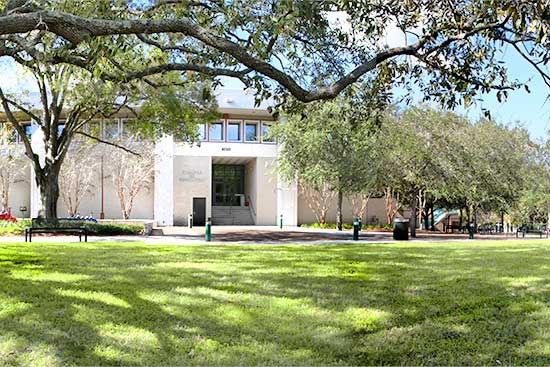
Established in 1982, the Florida Center for Instructional Technology (FCIT) has been a leader in working with educators to integrate technology into the curriculum for over thirty years. Visit our “About Us” page for more information.

Course FAQ
Do you have questions about our courses? Not to worry – we have answers to our most commonly asked questions. Please visit our FAQ page.
Contact Information
If you have questions, please do not hesitate to get in touch with us. We look forward to the opportunity to talk to you! If you have any technical issues while participating in one of our courses, we would like to help. Visit our Contact Us/Technical Support page for more information.
Free Resources
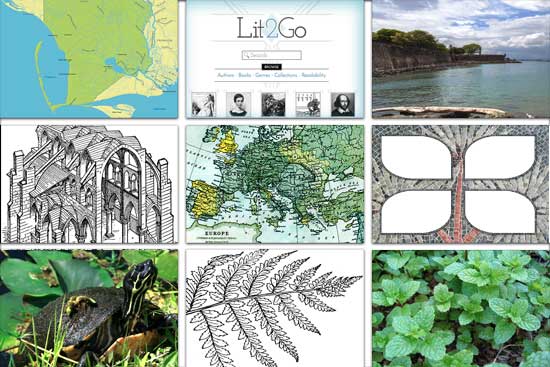
Looking for clip art, photos, and videos to use with your students? You can use the “digital building blocks” from our Educational Technology Clearinghouse for all of your classroom needs, free of charge. Visit our complimentary FCIT Websites page and download some resources today.
Spectacular exposure to ICTI-140 Search Skills and Strategies for Research and Learning course ignited me to share the wealth of information with my husband, son, and family members…the content will enlighten all students to become avid researchers!
This course really did open my eyes to all of the ways that I can communicate with students, parents, and other teachers. It forced me to push myself to explore the world of tools that I can use in my classroom to enhance my students’ learning. I will definitely be implementing some of the things learned in this course.
I think this class offered a wide range of flexibility that allowed a person with very little technology experience to learn a lot but also allowed an experienced user to dig deeper into the content. It is amazing how so much was covered in a short period of time but was not overwhelming. The instructor was very flexible and positive.
Harness the Power of Technology
FCIT offers fully online courses through the iTeach Professional Learning program. These four-week courses are available to educators and administrators around the world. Courses meet professional learning needs while empowering educators to use digital tools to improve student success!