

- Collaboration with peers
- Publishing on the Web
- Creating a web page
- Viewing multimedia on the Internet
- Publishing in a variety of formats

The Internet can be used as a tool for communicating outside of the classroom. Students can easily collaborate with peers across continents or ask questions directly to an expert in their field of interest. The multimedia capabilities of the Internet allow students to share information, stories, artwork, movies, and other productions with multiple audiences.
Email provides the opportunity for students to collaborate with their peers across town or across the globe. Of course, email use in the classroom should be carefully monitored and subject to the school's Acceptable Use Policy (AUP). Once students are aware of safety and netiquette issues, they may begin to work with students around the world. The following are examples of successful email projects in schools.
Plant growing contest
Students from a variety of geographical areas throughout the world plant the same kind of seeds on the same day, follow the same directions for care of the plants as they grow, measure the plants, and send data to other participants so they can use these data for graphing, analyses, and drawing conclusions.
Weather watch
Students exchange, compare, and graph weather information with other students across the country and around the world.
Pollution patrol
Students measure the quality of the air and water (in lakes, oceans, or rain) and compare findings with students in other parts of the world. The impact of pollution and environmental factors can be addressed.
Price is right
Students conduct surveys, collecting and comparing food, gas, or clothing prices from around the world.
Round robin stories
Students in participating classes start a story. Each story-starter is sent to a predetermined class, and the students add a new section to the story. Stories continue to rotate to the different classes until each story reaches the original class. Graphics can be added to illustrate the stories or create a book.
Tales to tell
Exchange and collect regional, ethnic, and urban folktales from various parts of the world (or country). Compare common themes, and discover what makes each story unique.
Map skills
Students from various parts of the world exchange postcards. Each class then connects the postcards to a large map as they arrive. Another idea is to have the students plan a fictional trip to visit their key pals, analyzing the best routes and modes of transportation, amount and type of money needed, and sites to see when they arrive.
Ask an expert
Ask an expert web sites allow students to interact with real world experts. A diverse group of professionals serve as a useful resource for career minded students. Connecting students to an expert in a specific field is a way of expanding horizons, enhancing curriculum with current information, and integrating Internet resources.
Publishing on the Web is an exciting way for students to share their work with others beyond the classroom. Although one might think the threat of publishing would make a student shy, the opposite often happens. The various opportunities to publish on the Web can engage students and encourage creativity.
Student work
Numerous web sites are available for students to submit their work, such as poetry, essays, research reports and school articles. Some web sites will publish all the student work that is submitted. Other web sites offer prizes and other incentives for students who submit their work.
Online journal
Online journal web sites publish or feature outstanding individual work and classroom projects. Students can submit an article or project to the journal for review and will receive feedback on their submission.
Student opinions
Student opinion web sites are available to allow students to publish their view or opinion on issues affecting young people. Students themselves have created some of these web sites, with the guidance of teachers and professionals in the field.
Oral histories
Oral history engages students in the journalism process. Students can interview different people, such as parents, grandparents, civic leaders or others who can share their experiences. This allows students to experience a different perspective of history and to share that story with others.
Newspapers
Publishing the school newspaper on the Web, as well as in print, allows others
in the community to be more informed about what is happening at the school.
Online newspapers allow students to cover more activities and give more students
writing experience.
A web page is a method of communicating that allows the outside world to step inside and learn a little more about yourself or your classroom. Creating web pages can be as simple or complex as you wish. The only tool you really need is a simple word processor. This basic introduction can get you started making a web page.
To turn any page of text into a web page, you need to add special code called HTML. HTML (HyperText Markup Language) tells the browser how to display your text. For example, there are codes to tell the browser when to start a new paragraph or when to make a font larger. There are also codes to tell the browser how to link to another page on the Internet if certain text or graphics are clicked. Learning just a handful of these HTML codes will allow you to create a web page. Here is an example of the "bare bones" code you need to type for any web page:
<HTML>
<HEAD>
<TITLE>
Sue's Home Page
</TITLE>
</HEAD>
<BODY>
This is my first web page!
</BODY>
</HTML>
And here is what the resulting page would look like.
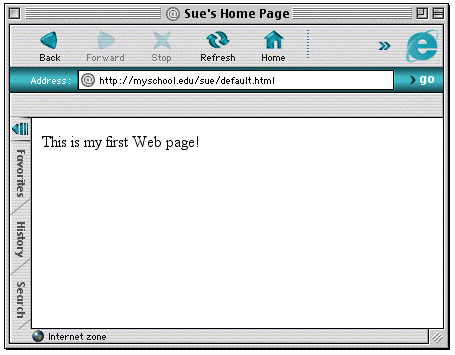
Of course, you'll probably want more than one short sentence on your page. Look at the next picture of a web page and the code that created it. Can you see what Mrs. Smith added to the "bare bones" code on the previous page to create her own page with text, links, and a graphic?
<HTML>
<HEAD>
<TITLE>Mrs. Smith's Fourth Grade</TITLE>
</HEAD>
<BODY BGCOLOR="#FFFFFF">
<CENTER>
<H1>Welcome</H1>
<H3>to Mrs. Smith's Fourth Grade</H3><P>
<IMG SRC="books.gif" WIDTH=141 HEIGHT=114><P>
This is going to be a great year! Click on the links below for more information.<P>
||<A HREF="HOMEWORK.htm">Homework</A>
||<A HREF="CALENDAR.htm">Calendar</A>
||<A HREF="MAILTO:mrssmith@myschool.edu">Email the teacher</A> ||
</CENTER>
</BODY>
</HTML>
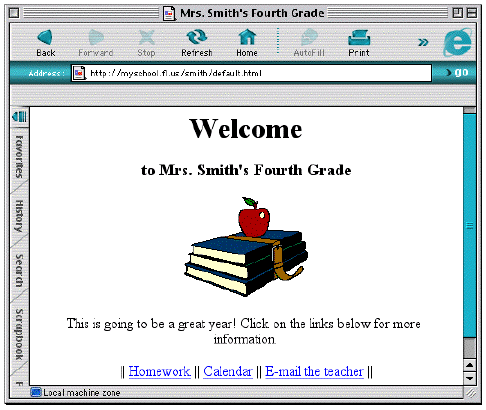
Even though basic HTML code is relatively easy, you may wish to use a software program that writes the code for you. These programs are often referred to as WYSIWYG programs - "What You See Is What You Get." With a WYSIWYG program, you just type your text the way you want it to look and the program will create the HTML code for you. Examples of WYSIWYG programs include Dreamweaver and Nvu. These programs enable you to easily create web pages. Also many word processors will allow you to save a document as HTML.
Publishing in a variety of formats
As students begin to incorporate multimedia into classroom projects they will also want to publish multimedia on the Web. Adding multimedia to a web page is more difficult than creating a simple page of text, but the results are well worth the effort. This section will give you some idea of what is possible in multimedia publishing.
Graphics
Many students will want to add images to their web pages. Communication can
be enhanced by the use of photographs, illustrations, maps, charts, and other
graphics. Sources for graphics include digital cameras, scanners, and painting
programs. Although graphics may be saved in many different file formats, three formats are typically used on the Web: GIF, PING, and JPEG.
Animation
Animation is a useful tool for showing processes. Any series of drawings or photographs can be turned into an animation and added to a web page. For example, a student might wish to make an animated map showing the growth of the United States. She would need to create a series of maps, each one showing the addition of a new territory. Each map should be saved with its own file name (map1, map2, map3, etc.). These separate images can be turned into an animated GIF using any number of inexpensive graphic programs.
Flash is another program that can create animations for the Web. Flash animations are vector based which means that the file size can be fairly small even though the animation itself is large. The learning curve for Flash is steeper than for animated GIFs, but that is because there are so many more features in this increasingly popular format.
Sound
Although sound files can be a powerful enhancement to a web page, there are many sites on the Web where inappropriate or poor quality music detracts from the visitor's experience. Therefore, students should be instructed to carefully select audio files for use on the Web. Audio files should complement the page and there should always be a way to turn the audio off. In fact, it is usually best not to have any audio play automatically. Instead, give the visitor the choice to play a particular file.
The educational uses of audio on the Web are limitless. Some students may wish to record a podcast of themselves reading poetry they have written. These sound files could be placed next to the text of their poems on a web page giving visitors the option of hearing the poems read by the authors. Another student might record birdcalls in her locale and collaborate with other students in various parts of the country to create a web site about birds. Each photo of a bird could be accompanied by a link to the appropriate sound file. A musically inclined student might wish to save his composition in the MIDI file format and include it on his personal web page or use it as background music in a web-based multimedia project.
Video
Desktop movies can motivate and excite students about learning. Such movies can be more than what we usually think of as motion video. They can also incorporate still pictures, artwork, text, and audio. Desktop movies provide students with hands-on experience as script writers, storyboard artists, directors, and editors. Movies can be created and edited in a wide variety of software applications ranging from the professional to simple programs suitable for elementary students.
Virtual Reality
Virtual Reality (VR) provides viewers the opportunity to move around in a photo realistic environment and to manipulate objects. Students find VRs particularly engaging and are often surprised to learn that they can be created in the classroom at little or no cost.
A panorama VR allows one to view a scene in all directions. Students will
first need to create a very long picture that shows a scene in all directions.
One end of the picture should match with the other end. Perhaps one student
will want to make a panorama VR movie of your classroom. She could start with
a series of photos from a digital camera and use a graphics program to paste
them all together end-to-end. Another student might want to make a VR of the
hydrological cycle. He could draw a long picture in a graphics program showing
from (left to right) water evaporating from the ocean, falling as rain on
land, and returning to the ocean.
Portable Document Format
Although there are ways of creating a variety of text styles on a web page, you can never be sure that a page will display exactly as a student expects. For projects that utilize special fonts and text formatting, students should consider publishing the document as a Portable Document Format (PDF) rather than as an HTML page. A PDF displays a page exactly as it was created. Many word processing and layout programs have the capacity to save as PDF. A student would then create an HTML page with a link to the PDF file. This page should also carry a link to Adobe so a visitor to the page can download the free Adobe Acrobat plug-in needed to view the PDF.

||
Contents ||
Internet Basics ||
Becoming Good Netizens ||
Productivity Tools ||
||
Communication Tools ||
Research Tools ||
Problem-Solving Tools ||
Appendices ||
 | Florida
Center for Instructional Technology College of Education, University of South Florida, 4202 E. Fowler Ave., EDU 147 Tampa, Florida 33620 © Florida Center for Instructional Technology, 1995-2013 |
Last updated 2009